
Step 1 – install
Dashboard -> Left menus -> Plugins -> Add new
Put bbPress in search and it was the first result ( Author should be ‘The bbPress Community’ )
Clicked install plugin and activated.
Step 2 – membership setup
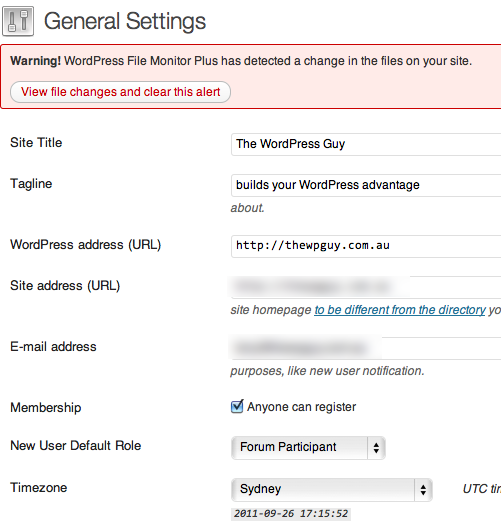
Dashboard -> Left menu -> Settings -> General and set Membership to ‘Anyone can register’ & New User Default Role to ‘Forum Participant’
Step 3 – create registration page
I created a page called Forum registration and added a shortcode I found on the bbPress.org site.
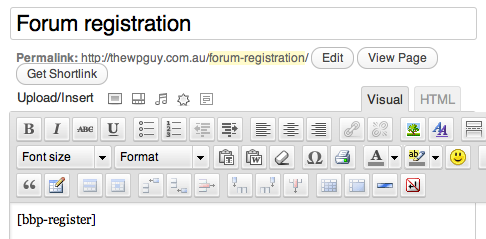
 Here is the link to all of the shortcodes http://bbpress.org/forums/topic/bbpress-20-shortcodes
Step 4 – create login page
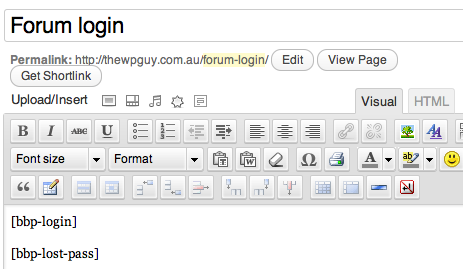
Created a page called Forum Login and added a shortcode for logon and one for lost password
Step 5 – add new pages to menu
Then put those pages under the forum menu.
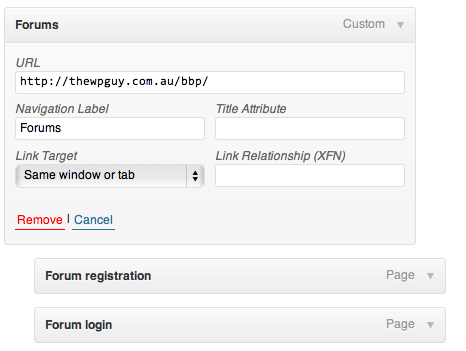
To get the forum listing address I used as the top menu item go here
Dashboard -> Left menus -> Settings -> Forums
and in the setting there is a heading called ‘Archive slugs’ and the first entry is what you add to your domain name with a / in between.
For example my slug is bbp so the link to the forum listing is https://www.thewpguy.com.au/bbp

If you are not sure how to create a custom menu item watch the video on post how to use the WordPress 3.0 menu system . Custom menu items are mentions at the 1 minute mark of the video.
Step 6 – resave forum settings
I also had to go to Dashboard -> Left menus -> Settings -> Forums and just do a ‘Save changes’ as there can be a glitch sometimes (which I had) and users can’t post and this clears it.
Step 7 – create forums
Created a few new forums
Dashboard -> Left menus -> Settings -> Forums -> New forum
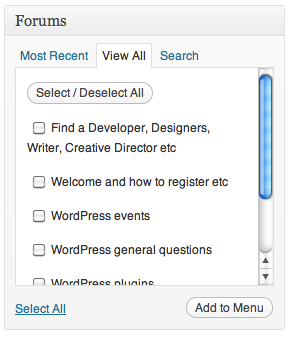
and put links to them in the dropdown menu under forum. The forums can be created as menu links straight from
Dashboard -> Left menus -> Appearance menus if your theme supports the menu system introduced in vers 3.0 of WordPres
Step 8 – create welcome message with rego and login links
I then created a forum entry with a welcome and links to those registration and login pages.
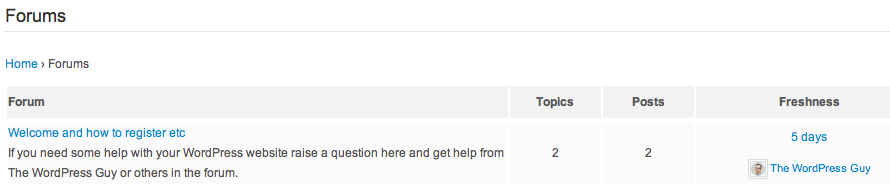
https://www.thewpguy.com.au/bbp/topic/welcome/
Step 9 – redirect directly to forums after login
I installed this plugin to redirect after someone logs in back to the forum listing.
Login redirect
Link to the free plugin: http://premium.wpmudev.org/project/login-redirect
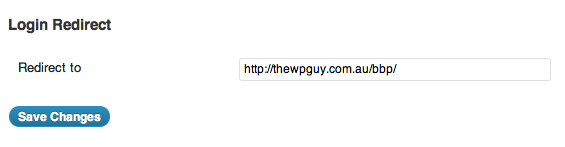
To setup up the redirect you need to go to Settings -> General and right at the bottom you put the link to the main forum page
Feedback & Questions
If you have any questions please feel free to add a comment or even better use the forum where it will be easier to find later and may help more people.
https://www.thewpguy.com.au/bbp/

I’ve been building WordPress websites for over a decade, spoken at conferences around the world, and taught countless people how to build and maintain their sites.
I know its a jungle out there finding the right people for website development.
But I’m here to help.
Author Profile – Tony Cosentino